Character Chats
The core of CAICHAT.AI is chats. Here, you can talk to characters, try role-playing games of any format (SFW and NSFW), and engage in deep dialogues.
Start a Chat
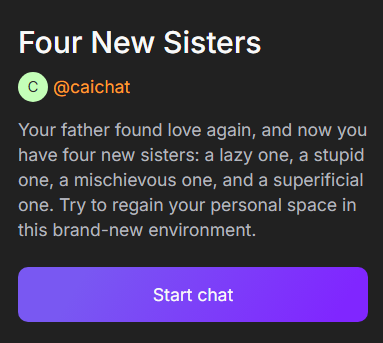
To start a chat, go to the profile of the selected character and click the button under their name. A chat will open where you’ll see a greeting. Reply to it, and the adventure will begin.
Optional Settings Before Starting a Chat
Before starting a chat, you can customize it according to your preferences. While in the character’s profile, you can:
- Choose an initial message (if provided by the author). This will influence the course of the conversation.
- Select the persona you will use to interact.
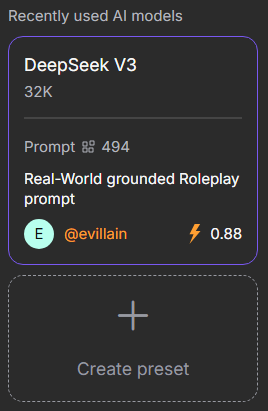
- Pick the AI model that will generate the character’s messages and the storyline.
- Select the prompt on which the previously chosen AI model will operate.
Note
Everything except the initial message can be changed while in the chat.
Chat Encryption
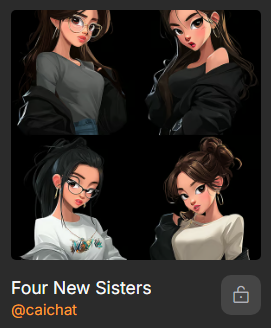
You can encrypt your messages and chats with end-to-end encryption. Third parties, including CAICHAT.AI, will not be able to read your messages. To do this, click the lock icon under the character’s avatar in the site’s right-hand menu and enter a password to encrypt the current chat.
Warning
If you forget your password, access to encrypted chats will be permanently lost. Keep it in a secure place.
Continue Chat
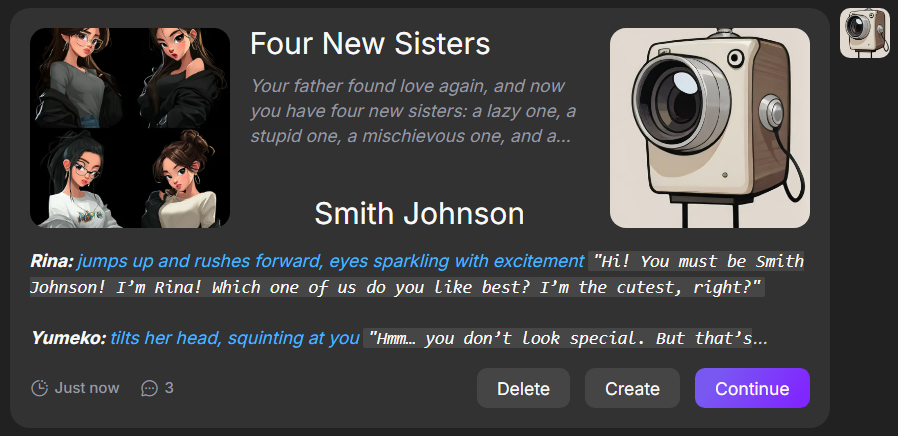
If you want to continue a chat you started earlier, go to the section in the site’s right-hand menu. It will show all the characters you have previously chatted with. Next to each character, there is a list of personas you used in your conversations. Click on the desired persona to see the last message and its timestamp. Then click the button to open the selected chat.
Here, you can also delete a chat by clicking or start a new one.
Persona Actions
You can not only speak but also perform actions. To do this, place an asterisk (*) at the beginning and end of the action.
Using asterisks, you can describe not only actions but also the surrounding environment and events happening around you.
Note
Example: *Your action or description of an event.*
Prompt Generation
If you’re unsure how to continue the dialogue, use a prompt. To do this, click the pencil icon to the right of the message input field. Clicking on a prompt will insert it into the input field.
Clicking the button again will expand the prompt with more detail.


Message Regeneration
If you’re not satisfied with a character’s response and want a different one, use the button located below the character’s message. You can generate multiple responses and choose the one that suits you best.
You can switch between messages using the arrows located to the right of the button.

Message Editing
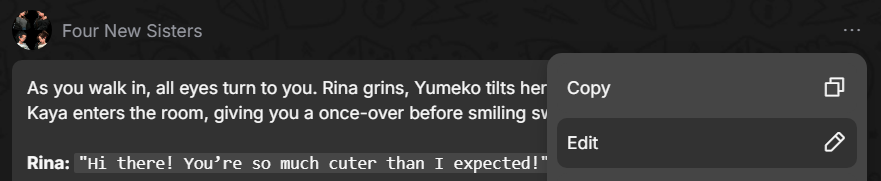
To steer the story in the desired direction, use the message editing feature and write the response you want the character to say. To do this, click the three dots in the top-right corner of the message and select .
Continuing the Dialogue
You can click the send button without typing any text. The character will continue the conversation and develop the story on their own.
Warning
Creating too many messages without providing a response may cause the character to repeat themselves.
Images for the Conversation
You can visualize events from the dialogue using the image generator. Images are created based on the character’s avatar and the last few messages in the chat. To do this, click the image icon below the character’s message.
If the result is unsatisfactory, click the Regenerate icon under the image to create a new version.
Chat Cloning
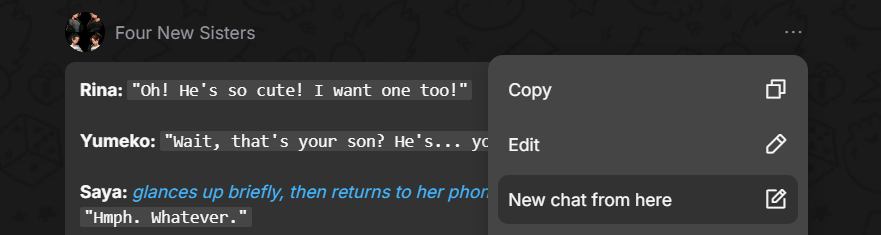
You can clone a chat from a selected message. This allows you to continue the dialogue in any direction without altering the original conversation. To do this, click the three dots above the message and select . This will create a new chat including all messages up to the selected one.
The cloned chat will appear in the list of all chats with that character.
Message Rating
You can rate the quality of any response using the five stars located at the bottom-left under the message. This helps us gather feedback on the AI’s performance and improve it.
Rating does not affect your conversation, but if a response seems particularly good or poor, feel free to give it a rating.
Report an Inappropriate Response
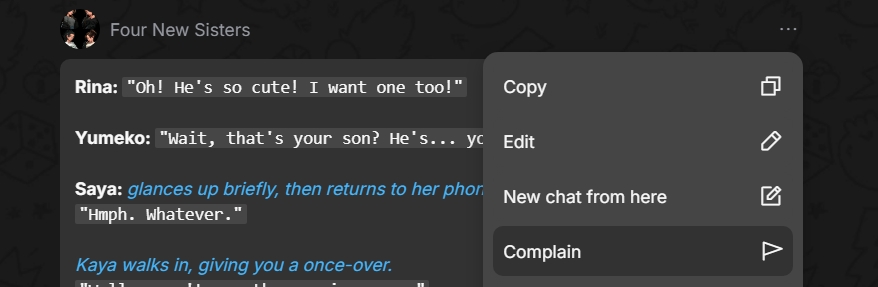
If you believe a character’s message is inappropriate, offensive, or violates community guidelines, report it. Click the three dots in the top-right corner of the message and select . In the window that appears, choose a reason from the list and describe the issue.
Changing Your Persona
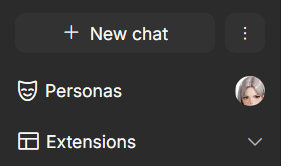
You can change your name, avatar, and even your profile information by switching personas. To do this, click in the site’s right-hand menu. In the window that opens, you can select any of the personas you have created.
Memories
With the memory manager, you can manage a character’s memories: add new ones, delete, or edit existing ones. These can include past facts, details of interactions with you, or any fictional elements.
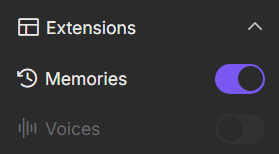
- To enable Memories, click in the site’s right-hand menu and activate the switch next to .
- To open the memory manager, click on .
A pinned memory is always taken into account by the character when generating responses and influences their behavior. To pin a memory, click the three dots to the right of it and select from the dropdown menu. You can unpin it in the same way.
Select an AI Model and a Preset Prompt for Chat
You can create a preset AI model with a pre-configured system prompt. This allows you to quickly apply a specific style of behavior and speech for a character without manually adjusting each parameter.
To do this, click in the site’s right-hand menu. In the first window, select an AI model and click . In the second window, choose a suitable prompt and click .